Bookings
The Bookings page has three tabs: Class Bookings, Trainer Bookings, and Facility Bookings. Each tab shows bookings from the Business Dashboard and from the Member App.
Class Bookings
Section titled “Class Bookings”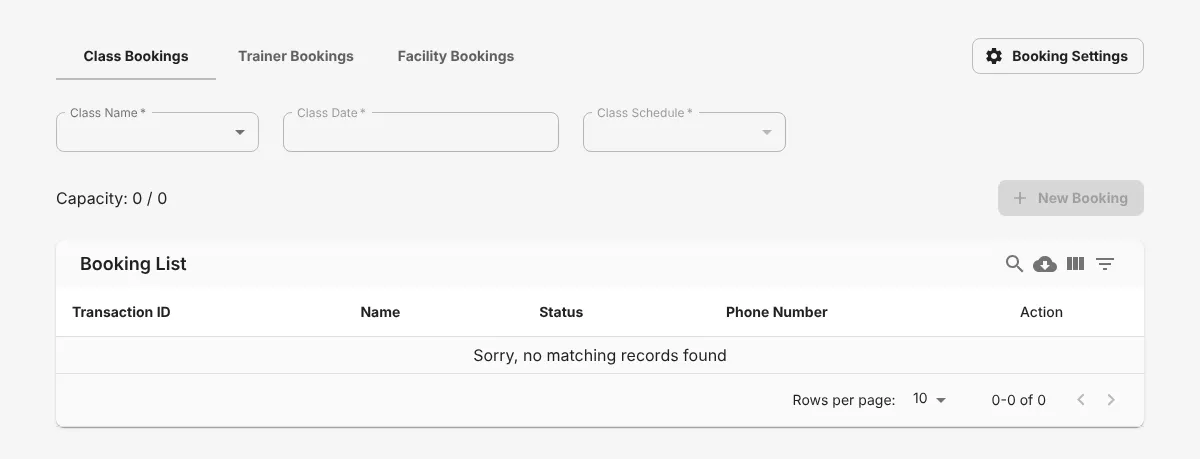
- Select the 1 Class Name, 2 Class Date, and 3 Class Schedule.
- See the Booking List for that class. The capacity and the places left show above the table.
Add a class booking
Section titled “Add a class booking”- Click 4 New Booking.
- Select the member’s transaction in Transaction.
- Click Submit.
Trainer Bookings
Section titled “Trainer Bookings”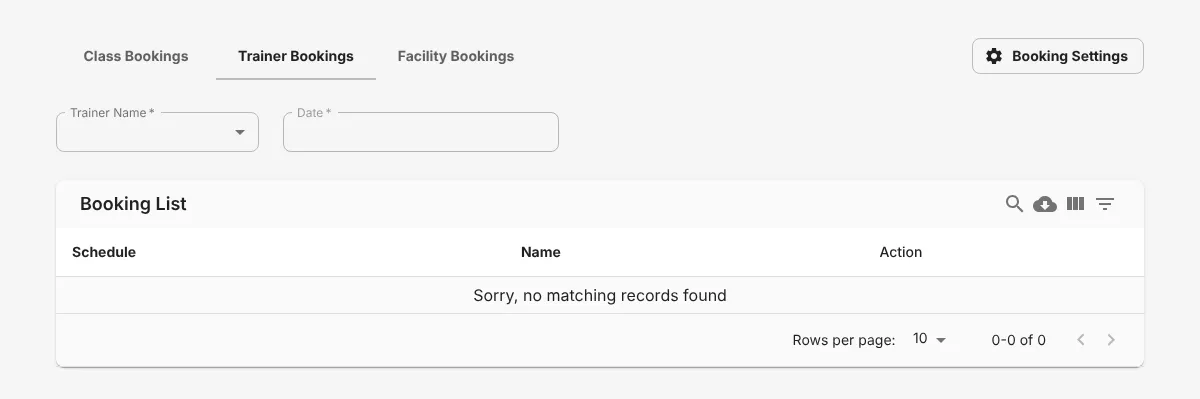
- Click the 1 Trainer Bookings tab.
- Select the 2 Trainer Name and 3 Date. The table shows the trainer’s schedule on that date.
- At a free time, click Book.
- Search for the member name, then save the booking.
Facility Bookings
Section titled “Facility Bookings”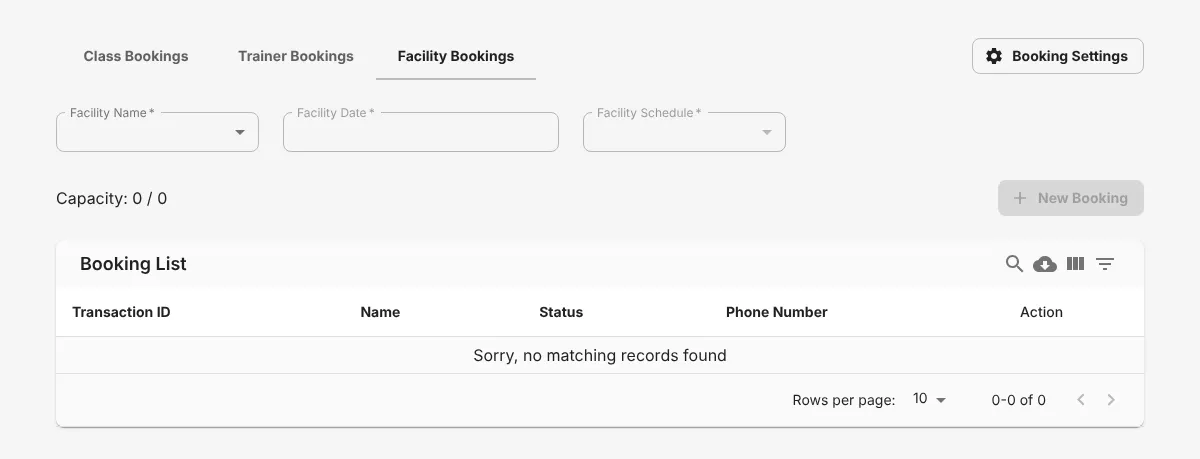
- Click the 1 Facility Bookings tab.
- Select the 2 Facility Name and 3 Facility Date.
- Click 4 New Booking, search for the member name, then save the booking.
To cancel a booking, click Delete on its row.