Members
Member List
Section titled “Member List”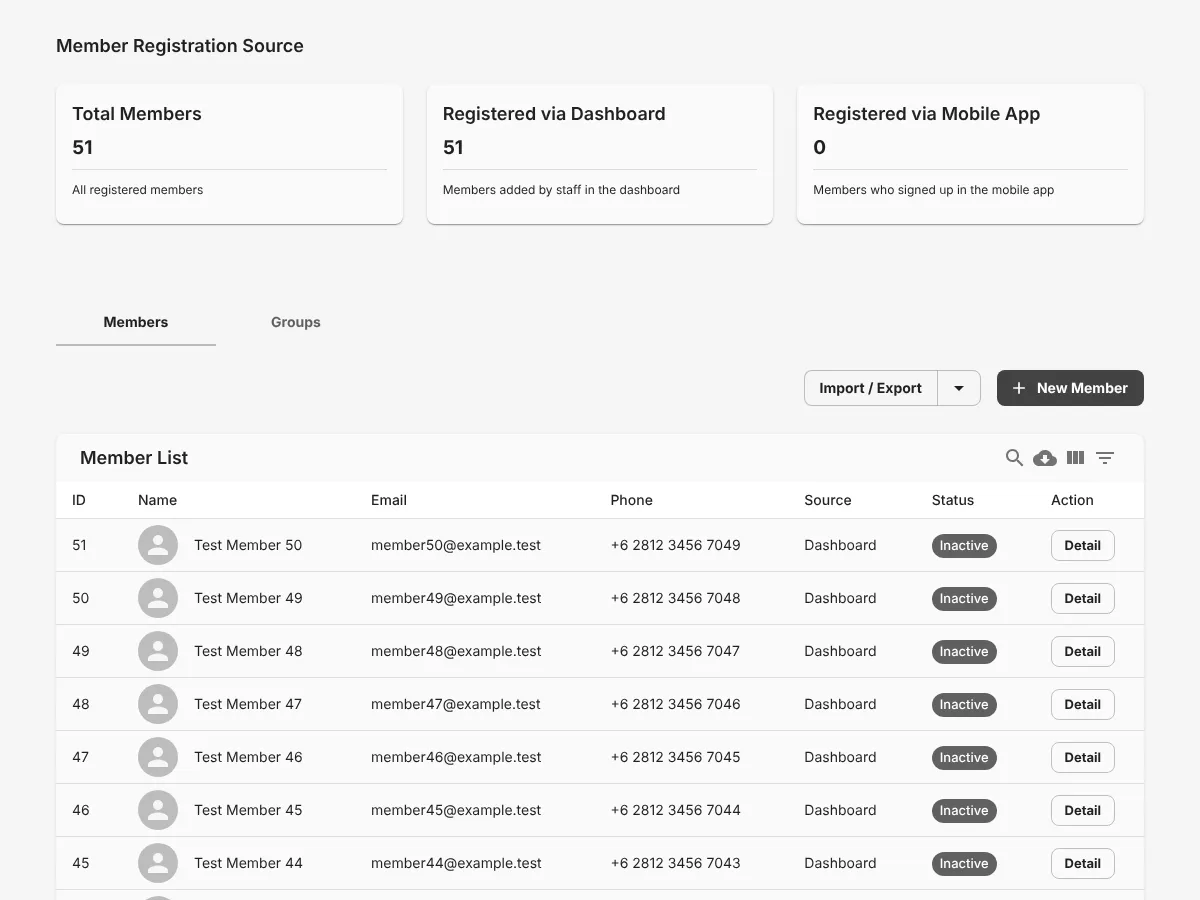
This table shows all members. It includes members you add by hand and members who sign up in the Member App. The cards above the table show the number of members for each sign-up source.
- 1 Click New Member to add a member.
- 2 The Status column shows the member status: active, expiring soon, or inactive.
- 3 Click Detail to see the data of a member.
Add a member
Section titled “Add a member”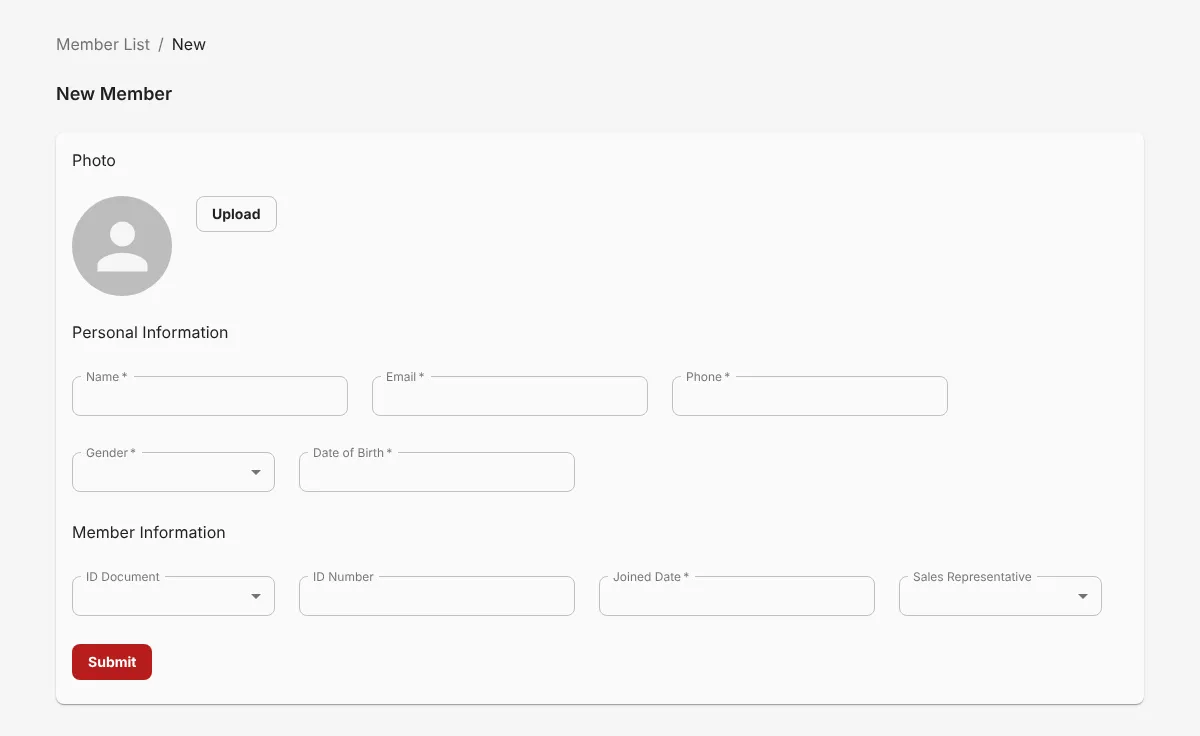
- Click New Member in the Member List.
- 1 Click Upload to add a photo.
- 2 Enter the personal data: name, email, phone number, gender, and date of birth.
- 3 Enter the member data: ID type, ID number, and Joined Date.
- 4 Click Submit.
Member Transaction List
Section titled “Member Transaction List”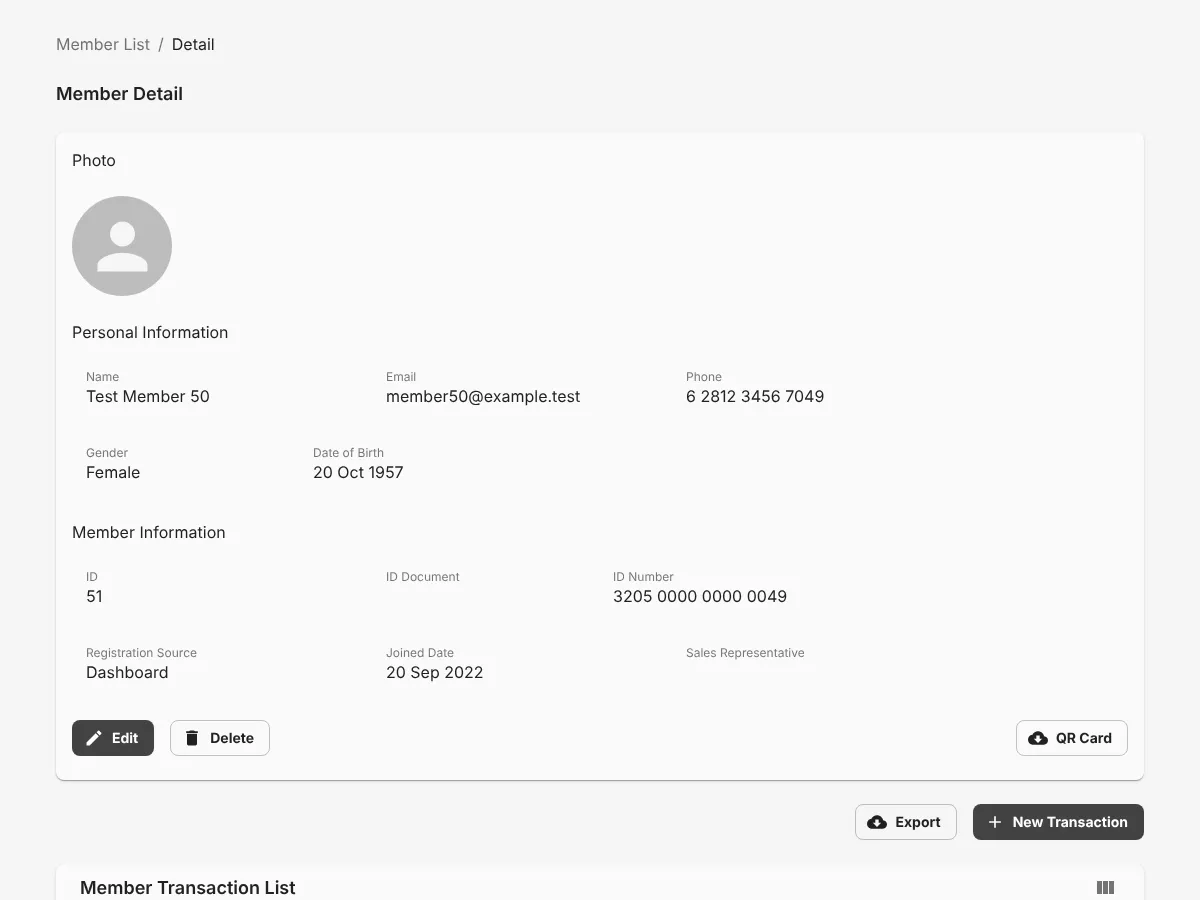
Click Detail on a member to open their data and transaction list. The list has transactions from the Member App and transactions that an admin enters in the Business Dashboard.
Each transaction shows the validity period, price, membership category, and the number of sessions and sessions left.
- Click Extend to extend the same membership.
- Click Detail on a transaction to see its details and print the invoice.
Add a transaction
Section titled “Add a transaction”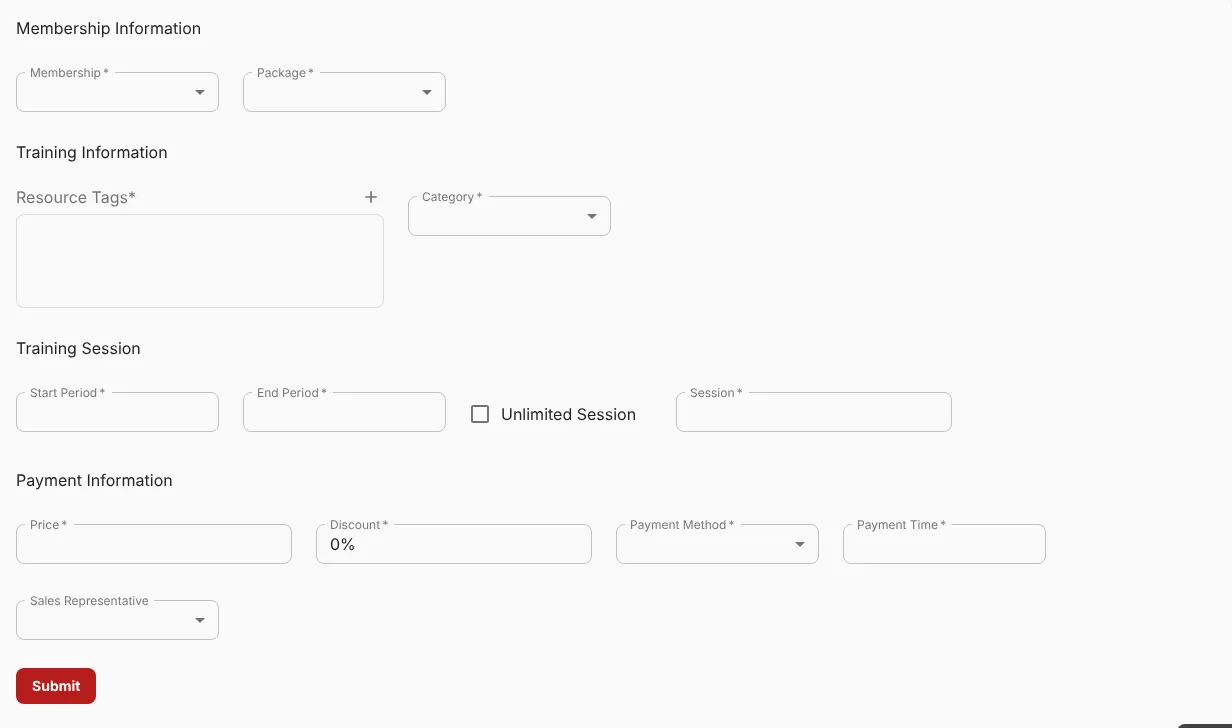
- In the member detail, click 1 New Transaction.
- Select the 1 Membership and 2 Package. You set these options on the Memberships page. The training data and price fill in automatically.
- Select the 3 Payment Method.
- Click 4 Submit.
The new transaction shows in the Member Transaction List.