Staffs
The Staffs page has two tabs: Staff List and Staff Payrolls.
Staff List
Section titled “Staff List”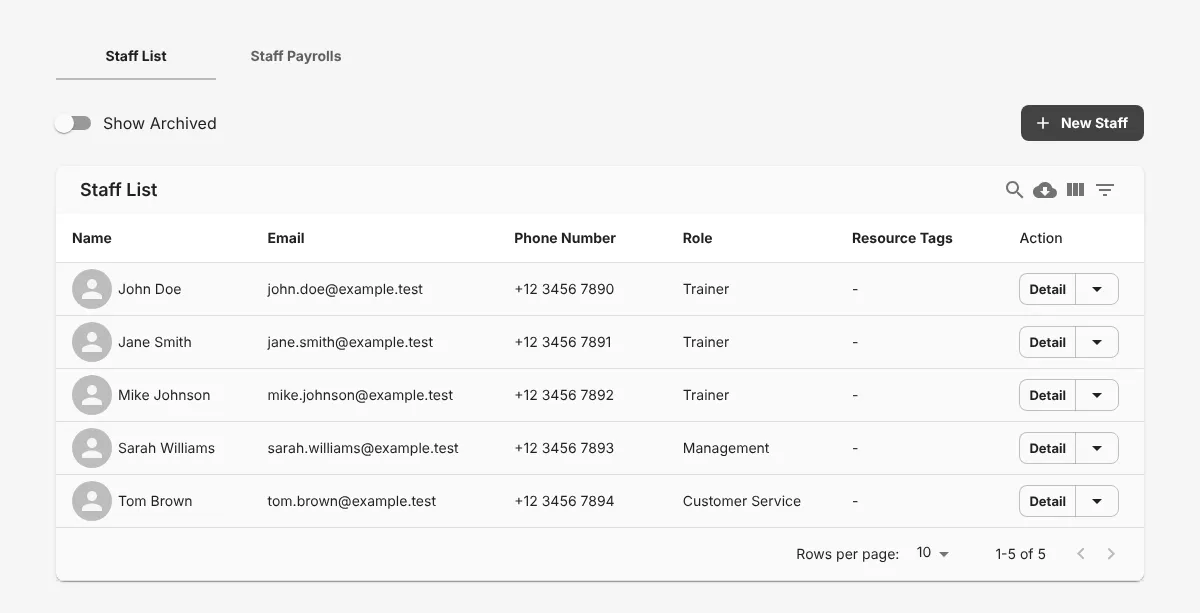
This tab shows all the staff you added.
- 1 Click the Staff Payrolls tab to see pay.
- 2 Click New Staff to add a staff member.
- 3 Click Detail to see the data of a staff member.
Staff Payrolls
Section titled “Staff Payrolls”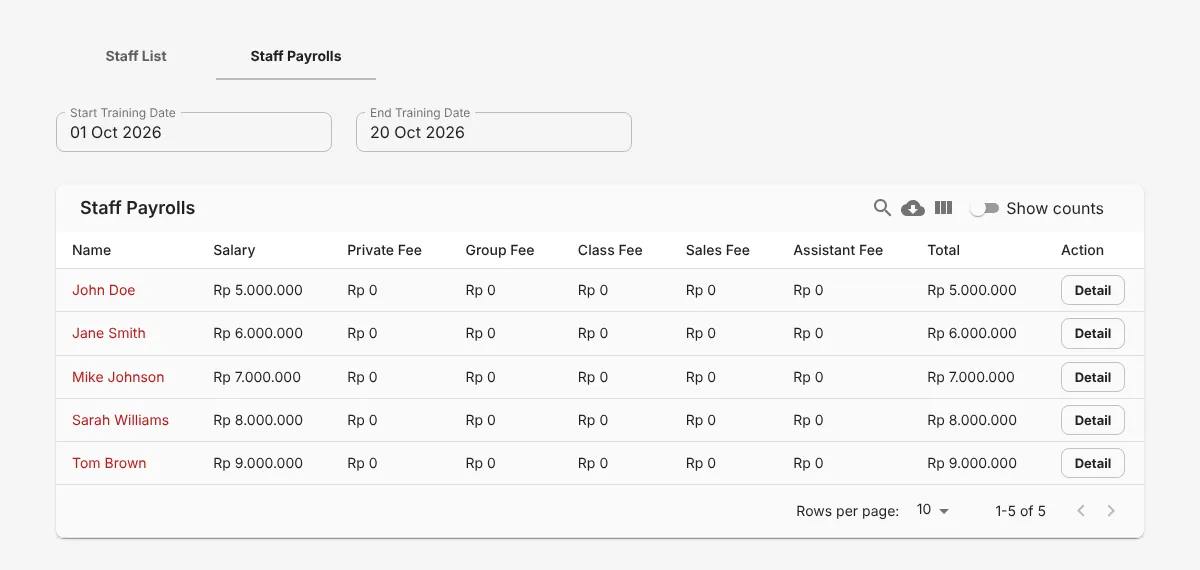
This tab calculates the pay and commission of each staff member automatically.
The table shows the salary, private fee, group fee, class fee, sales fee, assistant fee, and total for that period.
Add a staff member
Section titled “Add a staff member”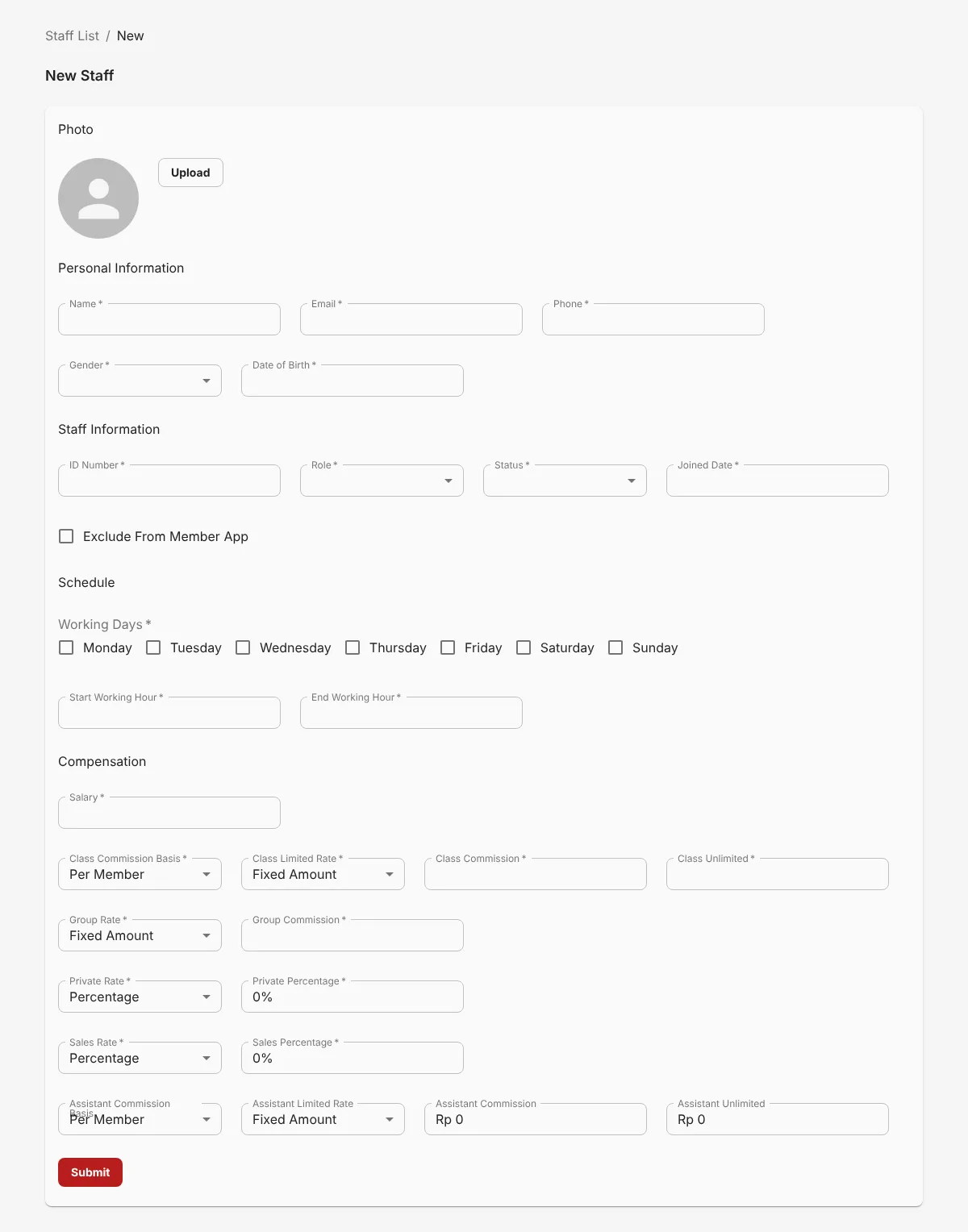
- Click New Staff.
- Enter the personal data: photo, name, email, phone number, gender, and date of birth.
- 1 Enter the staff data: ID number, Role (job title), status, and join date.
- 2 Select the working days.
- 3 Enter the Start Working Hour and End Working Hour.
- 4 Enter the base pay in Salary. Then enter the fees and commissions for classes, group sessions, personal training, and sales.
- 5 Click Submit.
The new staff member shows in the Staff List.
Extra fields for trainers
Section titled “Extra fields for trainers”If you select the Trainer role, also fill in these fields:
- Session Duration: the length of one trainer session.
- Break Time: the trainer’s break hours.
- Resource Tag: the label that sets which memberships can book this trainer. See Resource Tags.