Gym Profile
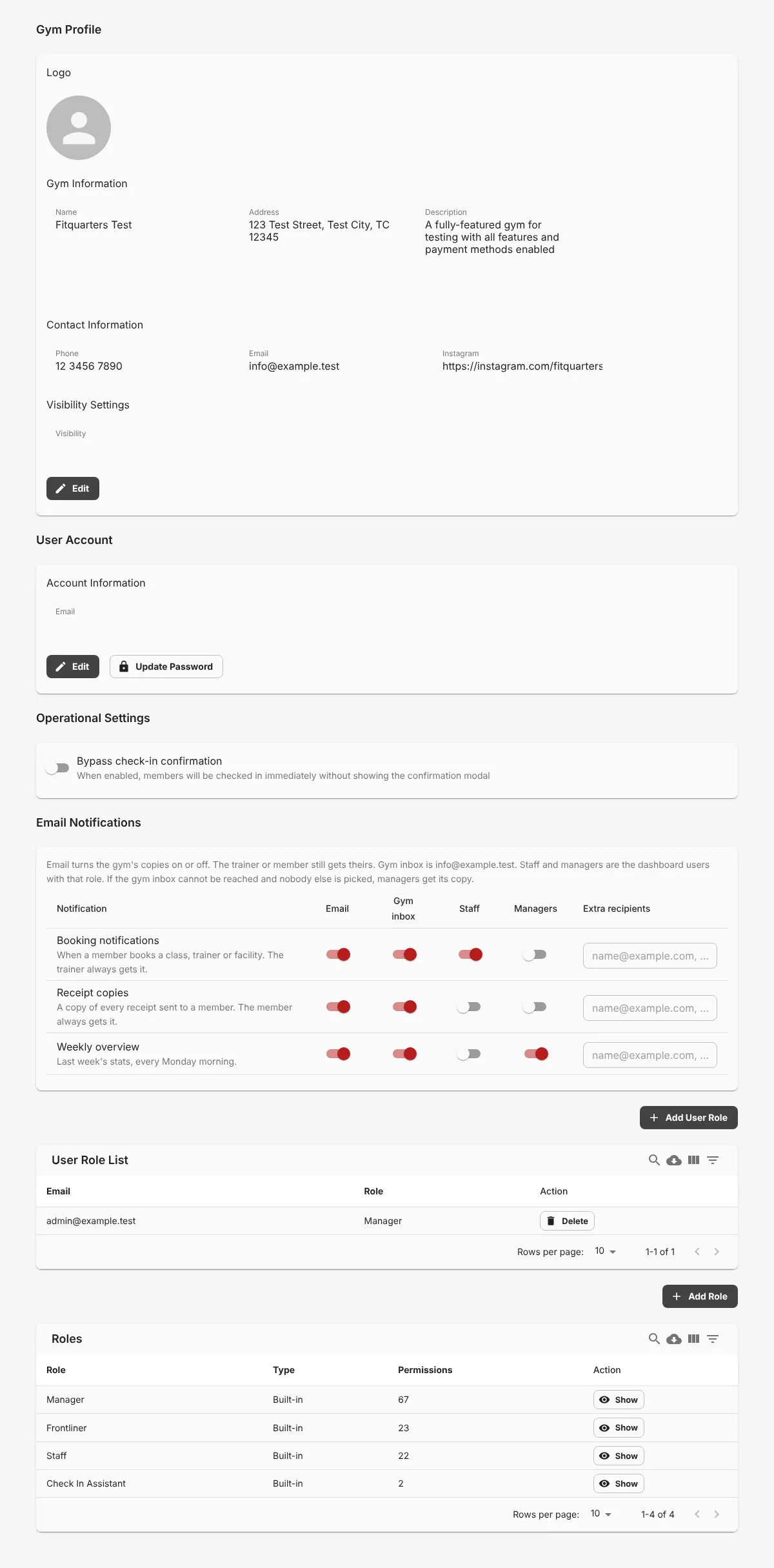
Gym info
Section titled “Gym info”- Click 1 Edit in the Gym Information section.
- Change the logo, gym name, address, description, phone number, email, or social media.
- Save the changes.
User Account
Section titled “User Account”- Click Edit in User Account to change the account email.
- Click 2 Update Password to change the account password.
Operational Settings
Section titled “Operational Settings”Turn on 3 Bypass check-in confirmation to check in members without a confirmation dialog.
Email Notifications
Section titled “Email Notifications”Set who gets the emails for bookings, receipt copies, and the weekly summary. For each email type, select the recipients: the gym inbox, Staff, or Manager. Add other addresses in Extra recipients.
User Role List
Section titled “User Role List”This table shows all users who can use the Business Dashboard of your gym.
Add a user
Section titled “Add a user”- Click 4 Add User Role.
- Enter the user’s email.
- Select a role: Manager, Frontliner, Staff, Check In Assistant, or one of your custom roles.
A Manager can use all features. Frontliner, Staff, and Check In Assistant have limited access. See User roles.
To remove access, click Delete on the user’s row.
The Roles table shows the built-in roles and your custom roles, with their number of permissions. Click Show to see the permissions of a role. Click 5 Add Role to create your own role. See Custom roles.