Overview
The Overview page shows a summary of your gym.
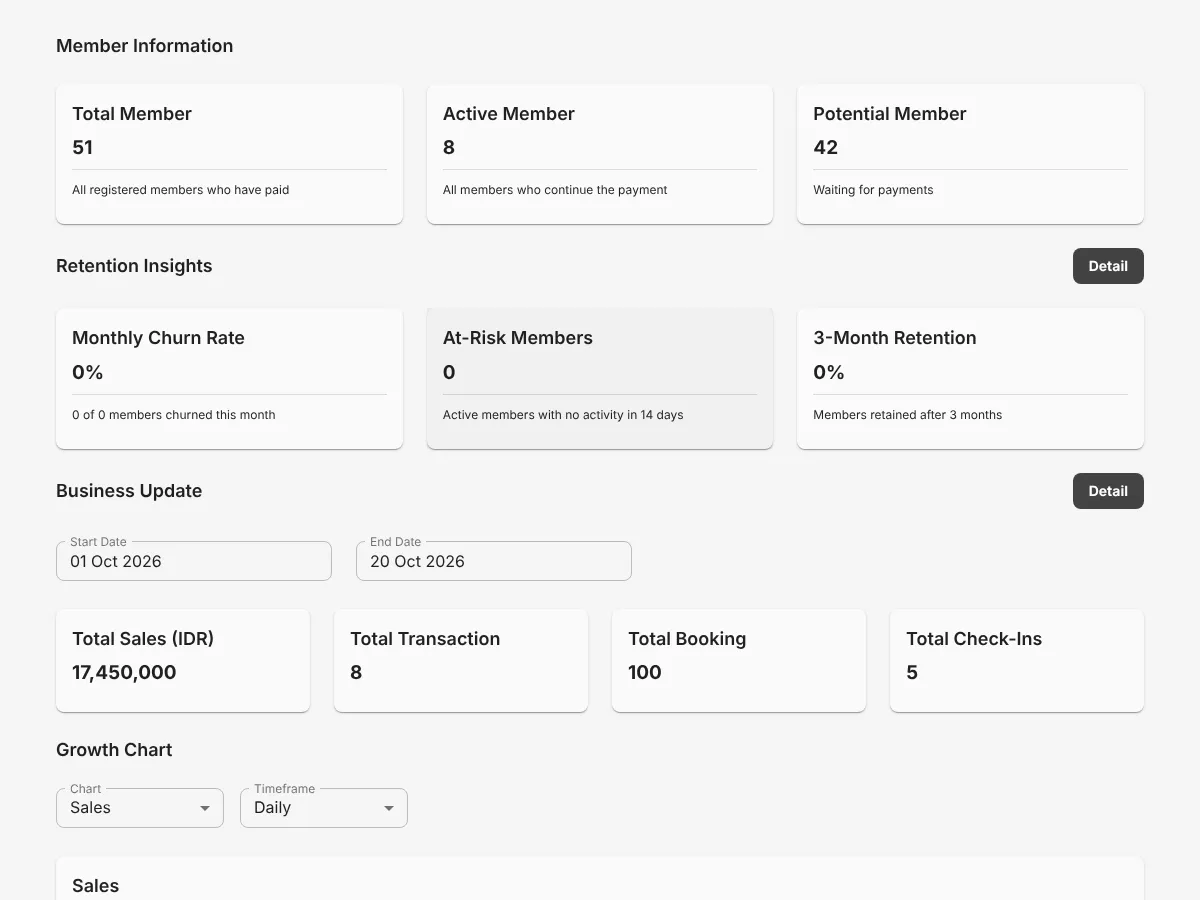
Member Information
Section titled “Member Information”1 The three cards at the top show member counts.
| Card | Shows |
|---|---|
| Total Member | All registered members who made a transaction. |
| Active Member | Members with an active membership. |
| Potential Member | Registered members who never had an active membership. |
Retention Insights
Section titled “Retention Insights”This section shows Monthly Churn Rate, At-Risk Members, and 3-Month Retention. At-Risk Members are active members with no activity for 14 days. Click 2 Detail to see the data.
Business Update
Section titled “Business Update”This section shows Total Sales, Total Transaction, Total Booking, and Total Check-Ins.
- Select a period in 3 Start Date and 4 End Date.
- Click 5 Detail to see the transaction and booking history.
See Business Update for each tab.
Growth Chart
Section titled “Growth Chart”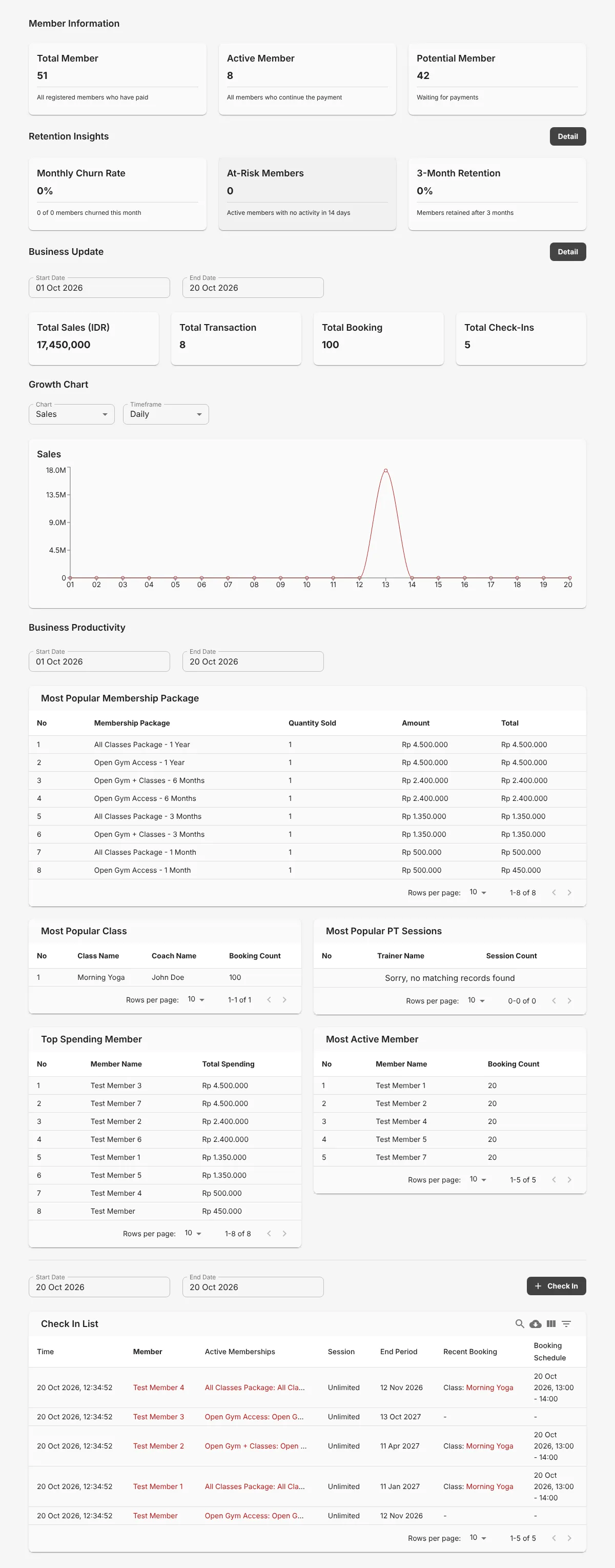
This chart shows data for the period in Start Date and End Date of Business Update.
- 1 Select the data in Chart, for example Sales.
- 2 Select the time unit in Timeframe, for example Daily.
Business Productivity
Section titled “Business Productivity”Select a period in 3 Start Date and 4 End Date. The tables below show the top results for that period:
| Table | Shows |
|---|---|
| Most Popular Membership Package | Packages by quantity sold, with the amount and total. |
| Most Popular Class | Classes by booking count, with the coach. |
| Most Popular PT Sessions | Trainers by personal training session count. |
| Top Spending Member | Members by total spending. |
| Most Active Member | Members by booking count. |
Check-In List
Section titled “Check-In List”This table shows the members who checked in during the period in 5 Start Date and 6 End Date. Each row shows:
- The check-in time and member name.
- The active membership, the number of sessions, and the sessions left.
- The end of the membership period.
- The last booking and its schedule.
Add a manual check-in
Section titled “Add a manual check-in”- Click 7 Check In.
- Search for the member name.
- Save the check-in.
Check in with a QR code
Section titled “Check in with a QR code”The member opens their QR code in the Fitquarters Member App. Then the member holds the QR code to the QR scanner on the Business Dashboard device. The check-in shows in the Check-In List automatically.